

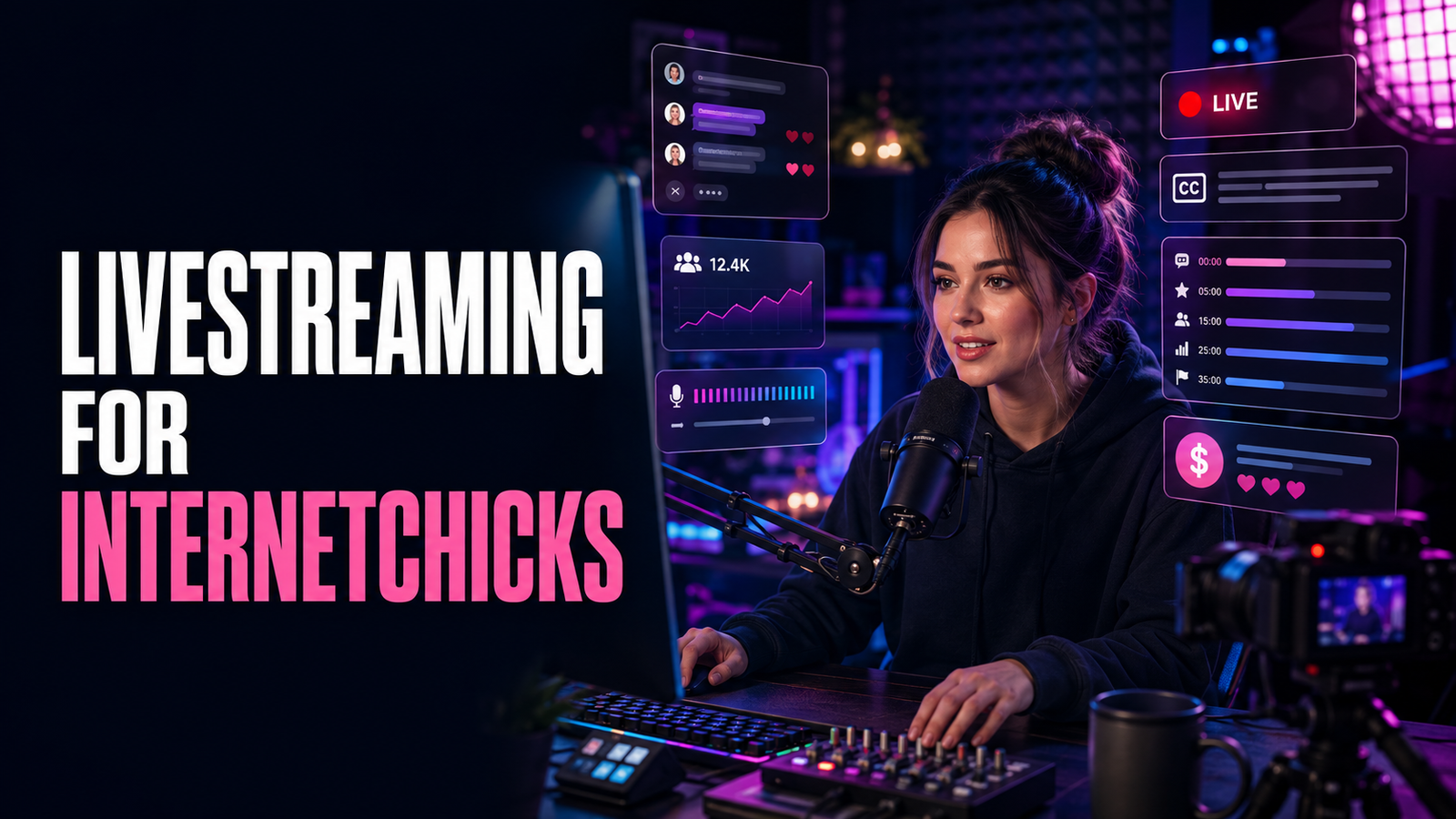
The red light turns on. The camera looks good. The title is live. Then the creator realizes the microphone has been muted for ninety seconds.
She fixes it, laughs, and begins again. A notification containing a customer’s name appears over the shared screen. Someone in chat asks where she lives. The song playing quietly in the background triggers a copyright warning. The guest cannot hear the questions. The planned product demonstration takes six minutes, leaving forty-four minutes with no plan. When the stream ends, a promising conversation disappears into a two-hour replay called “LIVE!!!” that nobody can search, scan, or understand.
That is not proof that she is bad at livestreaming. It is proof that going live and producing a live show are different jobs.
Livestreaming can create something edited content cannot: the feeling that creator and audience are sharing the same moment. A viewer can influence a decision, watch a skill unfold, ask the missing question, celebrate a win, or become part of a community ritual. That immediacy is the value. It is also the risk. There is no editing window between a private detail, unlicensed song, unsafe comment, false claim, accidental disclosure, or technical failure and the audience.
The solution is not to make live content stiff. It is to build enough structure that spontaneity has somewhere safe to happen.
This guide explains how Internetchicks can decide whether live content fits, choose a repeatable show format, select a platform, build a minimum viable livestream setup, use OBS Studio, plan a run-of-show, speak when chat is quiet, grow returning viewers, moderate harassment, protect privacy, work with guests, manage music and copyright, make sponsorship disclosures, monetize without exploiting the room, provide accessible live content, analyze performance, troubleshoot failures, repurpose the replay, and create a sustainable streaming schedule.
If you are still deciding where to publish, compare the best platforms for Internetchicks. If the channel and audience already exist, this article begins with a more useful question: what live experience will be worth returning to?
The Short Answer: How Should Internetchicks Start Livestreaming?
Start with one recognizable show, reliable audio, and a written safety plan—not an expensive studio.
- Define the live promise: who the stream is for, what happens, and why it is better live.
- Choose a repeatable format with a clear beginning, middle, and end.
- Select the platform where the intended viewers already understand that format.
- Confirm current age, account, feature, monetization, and regional eligibility in the platform’s official help center.
- Begin with the simplest production method that can deliver the show: a phone, native webcam, browser studio, or encoder.
- Prioritize clean, monitored audio; then improve light, framing, camera, graphics, and automation.
- Create starting, main, break, ending, and emergency scenes when using broadcast software.
- Run a private or unlisted rehearsal with the same movement, media, guest, and internet load as the real stream.
- Write a run-of-show with an opening promise, planned beats, interaction points, resets for late arrivals, and a close.
- Prepare chat rules, blocked terms, moderator authority, privacy boundaries, and an incident response.
- Use only media, music, footage, games, and guest contributions you are permitted to broadcast and archive.
- Disclose sponsors, affiliate relationships, gifts, and other material connections clearly and repeatedly during a live endorsement.
- Give the stream a searchable title, announce it before airtime, and create a reason to attend the next one.
- Afterward, review stream health, watch time, concurrent viewing, chat participation, conversions, replay behavior, clips, and returning viewers.
The working sequence is:
Live promise → repeatable format → suitable platform → stable production → safe room → useful show → replay assets → next invitation
A creator does not need to appear effortless. She needs to be audible, prepared, trustworthy, and interesting enough that viewers know why they should come back.
What Is Livestreaming?
Livestreaming is the real-time transmission of audio, video, or both to an audience that may watch and interact while the event is happening. The creator, viewer, and platform occupy the same publishing moment, even though technical latency may add a delay.
That includes:
- Gameplay and commentary
- Interviews, podcasts, panels, and Q&As
- Art, music, coding, cooking, beauty, or craft sessions
- Lessons, demonstrations, critiques, and workshops
- Co-working, study, planning, and accountability rooms
- News analysis and event commentary
- Product launches, reviews, and live shopping
- Behind-the-scenes production
- Performances and ticketed digital events
- Mobile or IRL broadcasts from real-world locations
- Member-only office hours or community gatherings
Livestream, Premiere, Webinar, and Video Call Are Not the Same
| Format | What is live? | Audience role | Best fit |
|---|---|---|---|
| Livestream | Performance or presentation and interaction | Watches and may participate through chat, reactions, polls, calls, or purchases | Community shows, demonstrations, entertainment, live coverage |
| Premiere | Usually a prerecorded video released at a scheduled time | Watches together and may chat with the creator | Polished release with an event feeling |
| Webinar | Presentation is live or scheduled; access may require registration | Learns, asks questions, and may receive a sales offer | Education, lead generation, training |
| Video meeting | Participants join a two-way call | Expected to speak or appear | Team sessions, small workshops, consultations |
| Audio room | Voice is live without a primary video feed | Listens or joins the stage | Conversation, interviews, lightweight community sessions |
| Live shopping | Host demonstrates products while purchase tools remain visible | Asks questions and shops | Product education, launches, affiliate or retail programs |
The difference matters. A webinar audience may tolerate slides and registration. A Twitch audience may expect continuous presence and chat awareness. A paid workshop may require access controls, worksheets, and participant privacy. A public short-form-platform live may receive people in rapid, unpredictable bursts.
Do not call every scheduled interaction a livestream and assume the same production plan will work.
Is Livestreaming the Right Format for You?
Live is not a higher form of content. It is a different container.
Livestreaming fits when:
- The audience benefits from asking questions in the moment.
- The process is as interesting as the finished result.
- Uncertainty, challenge, progress, or participation creates tension.
- The creator can respond without needing heavy fact-checking or editing.
- A regular appointment can deepen the community.
- The subject produces enough visual or conversational movement.
- The creator can maintain privacy and emotional boundaries under pressure.
- A live event naturally creates useful clips, replays, or follow-up material.
- The team can support moderation and production at the expected scale.
Another format may be better when:
- The subject requires careful sourcing, legal review, or precise wording.
- The creator is discussing private people, active disputes, confidential work, or sensitive locations.
- The desired outcome depends on polished editing or complex visual explanation.
- The creator feels unsafe, depleted, or obligated to be continuously available.
- The audience is rarely online at the same time.
- The only reason to stream is that a platform is promoting live video.
- Technical unreliability would make the promise impossible to deliver.
- The concept has no reason to happen now rather than as a ten-minute recorded video.
The “Why Live?” Test
Complete this sentence:
This should be live because viewers can ______ while it happens.
Strong answers include “choose the next design,” “ask follow-up questions,” “work beside me,” “watch the challenge unfold,” “help solve the problem,” or “experience the release together.”
“Because live gets reach” is not a show concept. Distribution may change without notice. The viewer experience has to survive the algorithm.
What Makes Viewers Return to a Livestream?
A person may enter once because of a notification. She returns because the show gives her a reliable kind of value.
Presence
The creator is actually attentive to the room. She does not merely rebroadcast something that could have been uploaded. Presence can be calm, witty, analytical, chaotic, warm, exacting, or quiet. It is not the same as oversharing.
Progress
Something changes during the session: a drawing develops, a level is completed, a room is organized, a problem is debugged, a question becomes an answer, or a project moves one stage forward.
Participation
Viewers can contribute without being forced to perform. They may vote, suggest, ask, predict, choose, or simply watch. Good participation affects the experience; it does not reduce the creator to obeying the loudest message.
Expertise
The audience gains access to judgment that is hard to compress into a list: why a musician rejects one take, how a stylist adjusts a look, what an analyst notices first, or where a developer looks when a system fails.
Ritual
The same greeting, day, format, segment, challenge, or closing practice makes the stream recognizable. Ritual lowers the mental effort of deciding whether to attend.
Stakes
There is a real outcome: finish the build, make the decision, answer fifty questions, reveal the result, meet the deadline, or reach a shared milestone. Stakes need not be extreme. They only need to be honest.
The strongest shows usually combine two or three of these. “We redesign one viewer-submitted landing page every Thursday and explain every decision” has progress, expertise, participation, and ritual. “Come hang out” asks the audience to invent the value.
Choose a Repeatable Livestream Format
Choose a format before choosing overlay colors. A format tells the creator what to prepare and tells the audience what they are entering.
Gameplay and Commentary
The game provides continuous action, but the creator still needs a point of view. Possible angles include first-time discovery, mastery, speed, challenge rules, cozy play, competitive analysis, lore, accessibility, or community play.
Check the publisher’s current content and commercial-use policies, especially for unreleased titles, music-heavy games, tournaments, paid access, and sponsored broadcasts.
Talk Show or Q&A
Conversation-led streams work when the subject and host are specific. Collect seed questions in advance, group them by theme, and prepare material that works even if live chat is silent.
Avoid answering high-stakes legal, medical, financial, or personal-crisis questions beyond your competence. “Live” is not permission to guess.
Education and Demonstration
Teach one achievable transformation: edit a portrait, plan a budget, build a portfolio page, repair a common problem, or critique examples. Show the work large enough to follow. Summarize each stage for people who joined late.
For durable learning content, add chapters, resources, captions, and a cleaned replay afterward. The content-ideas guide for Internetchicks can turn one live lesson into a wider topic cluster.
Making, Art, Music, and Creative Process
The audience watches decisions become work. Protect client confidentiality, unreleased assets, reference rights, personal messages, and licensed music. If long periods require concentration, schedule chat breaks instead of pretending to respond continuously.
Co-Working, Study, and Accountability
These sessions create companionship and structure. Use visible timers, goals, quiet blocks, breaks, and check-ins. Decide whether music is permitted and whether the replay retains value.
Interview or Panel
The host manages pacing, guest safety, audience questions, time, and rights. A technical rehearsal and guest release are not “corporate extras”; they prevent confusion about recording, clips, sponsorship, and reuse.
Live Review, Shopping, or Product Demonstration
Show the product accurately, demonstrate normal use, answer limitations, and disclose the commercial relationship. Do not manufacture urgency, hide material terms, make unsupported results claims, or allow chat excitement to replace honest information.
Event and IRL Streaming
Mobile live content can feel immediate, but it adds location, bystander, background-audio, connectivity, battery, heat, theft, and personal-safety risk. Use a delayed location, a remote moderator, an exit plan, and conservative filming boundaries.
Build the Format Card
Write one page containing:
| Field | Decision |
| Show name | A memorable label, even if it stays informal |
| Audience | The specific viewer this serves |
| Live promise | What she will experience or accomplish |
| Format | Demonstration, gameplay, interview, co-work, review, or another structure |
| Length | A planned duration with a firm closing range |
| Cadence | Weekly, fortnightly, monthly, seasonal, or event-based |
| Core segments | The recurring beats viewers can recognize |
| Participation | Questions, choices, submissions, challenges, or quiet viewing |
| Boundaries | Topics, requests, locations, people, and behaviors that are off-limits |
| Next action | Follow, email signup, next stream, membership, product, or replay |
| Replay plan | Full VOD, edited replay, clips, summary, transcript, or no archive |
A simple format card prevents each stream from becoming a brand-new production.
Define the Live Promise and the Boundaries Together
A useful promise is concrete:
- “Bring one portfolio question; I will review five examples live.”
- “We build a complete short-form video from idea to export.”
- “Every Friday, we co-work for three focused rounds and report progress.”
- “One guest explains the decision nobody sees behind her work.”
Now write what the show does not provide:
- No private-account searches
- No real-time location details
- No diagnosis, crisis counseling, or individual legal advice
- No review of confidential work
- No call-ins from unverified guests
- No harassment framed as humor
- No pressure to donate, disclose personal information, or prove loyalty
Boundaries are part of the format, not an apology inserted after someone crosses them. For deeper preparation, use the online-safety guide for Internetchicks before announcing an IRL, controversial, or high-visibility live series.
Choose the Right Livestreaming Platform
There is no permanent “best livestream platform.” Choose according to the show, audience, discovery path, archive strategy, safety tools, and business model.
Evaluate:
- Where the intended audience already spends time
- Whether viewers arrive for live-first or on-demand behavior
- Horizontal, vertical, mobile, desktop, console, and television viewing
- Search, recommendations, categories, directories, and event pages
- Chat, polls, guest, co-host, raid, and community features
- Replay length, discoverability, chapters, captions, and clipping
- Moderator roles, filters, blocked terms, slow mode, follower or subscriber controls, and reporting
- Monetization eligibility, revenue share, payout, refunds, virtual gifts, subscriptions, ads, and shopping
- Music, game, reaction, mature-content, and branded-content rules
- Latency options and production integrations
- Accessibility support
- Analytics and data export
- Simulcasting or exclusivity terms
- Regional availability, age requirements, and feature rollouts
Platform features and eligibility change. Verify current terms on the official help page before building a business process around a button.
Twitch
Twitch is built around live viewing, chat culture, categories, raids, subscriptions, and recurring communities. It suits gameplay and many talk, music, art, making, and co-working formats where the live room is the main product.
Its discovery environment can be competitive, so creators often need clips, collaborations, search-friendly content elsewhere, and consistent programming. Twitch’s own Creator Camp introduction to going live recommends building a stable experience, thinking about audience and category, and distributing VOD moments as clips outside Twitch.
YouTube Live
YouTube can connect live events with search, recommendations, scheduled watch pages, long-form video, Shorts, and an enduring replay library. It is often strong for education, interviews, launches, commentary, and shows whose VOD should keep working.
YouTube currently offers webcam, mobile, and encoder routes, with account and feature requirements described in its official live-streaming setup guide. Mobile eligibility and limitations differ from other streaming routes, so check the current help page rather than repeating an old threshold from a blog post.
TikTok LIVE and Instagram Live
Native vertical live tools can place a creator close to mobile followers and introduce the room to people browsing short-form content. They work well for conversational sessions, behind-the-scenes moments, product demonstrations, casual tutorials, launches, and creator collaborations.
The audience may enter and leave quickly. Repeat the context without sounding trapped in a loop: “If you just joined, we are choosing between two cover directions, and I will reveal the final version in ten minutes.” Keep key objects and text inside the mobile-safe frame.
TikTok groups its current eligibility, replay, guest, moderation, Gifts, and event documentation in the official TikTok LIVE help center. Requirements can vary by age, location, account, and feature.
A Practical Platform Decision Table
| If the main goal is… | Look first for… | Watch for… |
| Build a recurring live-first community | Strong chat culture, categories, moderator tools, raids, subscriptions | Weak off-platform discovery or VOD performance |
| Create searchable live lessons | Scheduled pages, search, chapters, captions, durable replay | Long streams that need editing and packaging |
| Reach mobile short-form followers | Native vertical live, guest tools, rapid discovery | Fast churn, small-screen legibility, volatile eligibility |
| Host a controlled class or event | Registration, access control, email, recording, Q&A, attendee management | Participant privacy and platform capacity |
| Sell or demonstrate products | Product links, shopping integration, clear disclosures, replay controls | Returns, claims, urgency, gift and commerce rules |
| Run a paid community room | Membership access, moderation, archive permissions, member data | Platform dependence and unclear customer ownership |
Do not select a platform only because another creator is large there. Her format, audience history, region, account access, and content library may be doing the work.
Choose the Simplest Production Route That Serves the Show
More control creates more failure points. Begin at the lightest level that can deliver the format.
Native Mobile Live
A phone is enough for Q&As, field updates, simple demonstrations, casual vertical shows, and some IRL coverage. Use a stable mount, external power, Do Not Disturb, clean lens, monitored audio, strong connection, and a second device for moderation when possible.
Never hand a logged-in primary phone to an unbriefed guest. Incoming calls, messages, photos, saved passwords, contact names, and account controls can sit one gesture away.
Native Webcam Live
A browser or platform webcam route is useful for direct-to-camera sessions with few sources. It reduces encoder setup while limiting scene control, audio routing, overlays, and backups.
This is often the right first step. A valuable Q&A with clean sound beats a fragile studio production.
Browser Studio
Browser-based production tools can combine remote guests, screen sharing, layouts, comments, and brand assets without a full broadcast application. Review recording quality, guest privacy, data handling, platform integrations, browser permissions, and what happens if the host’s tab or connection fails.
Software Encoder
An encoder such as OBS Studio combines sources into a produced feed: camera, microphone, game, window, slides, video, alerts, captions, and graphics. It provides flexibility and local recording but needs setup, testing, computer resources, and disciplined screen capture.
OBS’s official Quick Start Guide begins with its Auto-Configuration Wizard, then adds scenes and sources, checks audio, and recommends a test before the first real stream. Use the wizard as a starting point, not as a substitute for watching the actual test output.
Hardware Encoder or Switcher
Dedicated devices can combine multiple cameras or encode without relying entirely on the main computer. They may suit events, multicamera shows, or reliable repeat productions. They also add cables, signal standards, power, firmware, capture routing, and cost. Upgrade when the show has proved why it needs them.
Build a Minimum Viable Livestream Setup
A basic setup should make the creator easy to hear, easy to see, and unlikely to disappear.
1. Audio Comes First
Viewers may tolerate an ordinary camera. They leave when speech is distorted, distant, intermittent, echoing, or buried under music.
Choose a microphone that suits the room and movement:
- A wired lavalier can keep the voice close during demonstrations.
- A dynamic desk microphone can reduce some room sound when used near the mouth.
- A USB microphone simplifies a one-computer setup.
- An audio interface and XLR microphone add routing and upgrade options.
- A wireless system gives movement but adds battery, interference, pairing, and backup needs.
- A headset can provide consistent proximity for gameplay, teaching, or calls.
Microphone price cannot fix distance. Move the microphone closer, lower unnecessary room noise, soften echoing surfaces, and monitor the delivered sound.
2. Monitor What the Audience Receives
Wear headphones when the format permits. Check the platform return feed on a second device at low volume. Audio meters prove a signal exists; they do not prove the correct microphone is clean or that the guest is audible.
Listen for:
- Clipping or crackling on loud words
- Room echo
- Computer fan and air-conditioning noise
- Keyboard or table vibration
- Music competing with speech
- Guest level differences
- Duplicate audio creating an echo
- Delay between voice and picture
Record a sample using the exact speaking distance and energy of the live show. A whispered “test, test” does not reveal what happens during an excited reaction.
3. Use Light Before Buying a New Camera
Place a soft light in front of the creator and slightly above eye level. Control bright windows behind her. Keep glasses reflection, skin tone, product color, and background separation in mind.
A modern phone or webcam in good light can look better than an expensive camera in a dark room. Cameras with clean HDMI, continuous power, compatible capture, and heat management become useful when the show proves the need.
4. Frame for the Actual Experience
Leave intentional space for captions, chat overlays, products, or screen content. Check vertical and horizontal crops separately. Remove private documents, family photographs, medicine labels, addresses, school logos, reflective surfaces, and location clues.
For a demonstration, the work must be larger than the host’s decorative background. For a conversation, eyeline should feel natural. For mobile live, keep important text away from interface controls.
5. Stabilize the Connection
Use wired Ethernet when practical. If Wi-Fi is unavoidable, test in the streaming location at the real airtime and reduce competing traffic. A speed test is only a snapshot; stability, packet loss, routing, local congestion, and computer load also matter.
Do not send at the absolute edge of measured upload capacity. Leave headroom for variation and other necessary services. Match resolution, frame rate, and bitrate to the weakest reliable part of the chain—not to the maximum number printed on the camera box.
6. Prepare Power and Backups
Keep devices connected to suitable power, disable sleep, and test heat over the full intended duration. Useful backups include:
- Charged phone with the platform app
- Spare cable, adapter, battery, or microphone
- Mobile hotspot where coverage and plan allow it
- Local copy of important media
- Static “technical break” image
- Written update for social and email
- A moderator who can tell chat what is happening
- A rule for when to end rather than repeatedly reconnect
Reliability is not the absence of failure. It is the ability to fail clearly.
Understand Resolution, Frame Rate, Bitrate, and Latency
Technical settings should protect the viewer experience, not serve as status symbols.
Resolution
Resolution describes image dimensions. Higher resolution can preserve detail but demands more upload bandwidth, encoding power, and viewer data. A stable 720p or 1080p stream can be more useful than an unstable higher-resolution feed.
Frame Rate
Frame rate describes the number of video frames sent each second. Fast gameplay, sport, dance, or detailed motion may benefit from a higher frame rate. Interviews, lectures, and mostly static demonstrations often do not need it.
Video Bitrate
Bitrate is the amount of video data sent over time. Too little for the chosen image produces blockiness; too much for the connection produces dropped frames, buffering, or disconnects.
Use the destination platform’s current encoder table. YouTube’s official encoder settings guide publishes resolution- and frame-rate-specific ranges, recommends testing realistic audio and movement, and advises monitoring stream health during the event. Other platforms have their own ingest limits.
Keyframe Interval and Codec
The platform may specify codec, rate control, audio format, and keyframe interval. Follow the current ingest instructions rather than copying a three-year-old “best OBS settings” screenshot.
Latency
Latency is the delay between capture and viewer playback. Lower delay helps conversation feel immediate but gives the player less buffer against network variation. Higher delay can improve resilience when instant interaction is not important.
YouTube’s latency guidance describes this trade-off: lower latency supports quicker chat responses, while viewers may encounter more buffering. Choose according to the show. A live auction, call-in, game with spoilers, or safety-sensitive IRL stream also needs a deliberate delay policy, not merely the lowest available number.
Never Expose a Stream Key
A stream key can allow software to publish to the channel. Treat it like a credential.
- Do not show it while sharing the platform dashboard.
- Do not paste it into public chat, screenshots, support forums, or team documents.
- Grant team access through proper roles where the platform supports them.
- Revoke or rotate a key after suspected exposure.
- Remove old integrations and devices.
- Protect the account with a unique password and strong multi-factor authentication.
- Store recovery methods securely.
Do not ask a freelance producer to log in as the creator if an appropriate delegated role or limited workflow exists. The best-tools guide for Internetchicks explains how to assess tools without giving every app permanent access to the business.
Set Up OBS Scenes Without Building a Spaceship
A scene is a saved layout. A source is an element inside it, such as a camera, microphone, window, game, image, or text layer.
For most first shows, create:
- Starting soon: a quiet holding screen with show name and a short countdown or start time.
- Main camera: the creator, captions if available, and only necessary branding.
- Content view: screen, game, slide, product, artwork, or overhead camera, with the creator sized appropriately.
- Break: a clear return message that reveals no private desktop.
- Ending: next stream or next step, credits, sponsor disclosure if relevant, and a clean close.
- Emergency: a neutral screen the producer can trigger instantly when privacy, guest, media, or location trouble appears.
Choose Capture Sources Deliberately
Window or application capture is generally safer than sharing an entire display, but still test pop-ups, menus, file dialogs, browser autofill, tab names, bookmarks, and notifications. Create a clean browser profile for streaming. Close email, messages, password managers, customer records, private dashboards, analytics containing personal data, and unrelated accounts.
Use generic sample data for demonstrations. “I will remember not to click that tab” is not a privacy control.
Keep Overlays Useful
An overlay should solve a viewer problem: identify the speaker, show the current topic, clarify a goal, make a link readable, provide a disclosure, or signal a break.
Remove graphics that:
- Cover the work or captions
- Compete with the creator’s face
- Display every alert at full size and volume
- Turn the frame into a control panel
- Reveal donor names or messages without clear expectations
- Depend on tiny text
- Flash or move continuously
The stream does not become professional when every empty corner is filled.
Build Audio Intentionally
In the mixer:
- Name every source clearly.
- Disable unused global devices to avoid accidental duplicates.
- Establish speech level before adding music or alerts.
- Use filters gently; aggressive noise suppression can damage the voice.
- Prevent music and alerts from overpowering speech.
- Route guest, game, music, and microphone separately where possible.
- Monitor a representative recording.
- Check that muted sources stay muted across scenes.
If the creator cannot explain where each sound enters and exits, simplify before adding another plugin.
Record Locally When Appropriate
A local recording can preserve higher quality for editing and protect against some platform archive failures. It also creates storage, privacy, consent, security, and rights obligations. Confirm disk space, file format, audio tracks, and whether the computer can encode both stream and recording reliably.
For high-value events, consider recording isolated guest or camera tracks when the production supports it. Test recovery of an interrupted file before trusting it.
Run a Real Preflight, Not a Ten-Second Camera Check
Rehearse in the same conditions as the show. If the event includes screen sharing, a guest, a product, music, motion, captions, alerts, and a local recording, the test must include them.
Twenty-Four Hours Before
- Confirm platform eligibility, event visibility, category, title, thumbnail, time zone, and links.
- Review community rules, branded-content settings, and content labels.
- Confirm guest names, pronunciations, permissions, arrival time, and backup contact.
- Load only cleared media.
- Update software early enough to recover—not five minutes before airtime.
- Restart necessary devices and check storage.
- Charge batteries and prepare spares.
- Send the moderator brief and run-of-show.
- Verify captions and accessibility arrangements.
- Place products, notes, water, and tools within safe reach.
Thirty Minutes Before
- Close private apps and enable Do Not Disturb on every visible device.
- Check camera framing, focus, exposure, white balance, and light.
- Confirm the intended microphone and guest audio.
- Record loud speech, quiet speech, movement, media, and alerts.
- Check sync and listen through headphones.
- Test the public return feed on another device.
- Confirm connection and stream health.
- Open the emergency scene and rehearse its shortcut.
- Verify moderator access.
- Post the event reminder.
- Use the bathroom.
At Airtime
Start the transmission, verify the platform receives it, and then begin the show. Do not fill an unexplained five-minute holding screen because a generic template contains one. A short, accurate start is more respectful than an artificial countdown.
OBS explicitly recommends testing for several minutes before the first stream. The principle remains useful for the hundredth: test what changed.
Write a Livestream Run-of-Show
A run-of-show is a timed map. It does not script every sentence. It makes sure the stream has something to return to after interruptions.
Example: A 60-Minute Creative Review Show
| Time | Segment | Host job | Producer or moderator job |
| 0:00–0:03 | Cold open | State the result viewers will see | Confirm audio and pin context |
| 0:03–0:08 | Welcome and rules | Explain format, boundaries, and disclosure | Remove spam; collect questions |
| 0:08–0:20 | Review one | Diagnose, demonstrate, summarize | Post resource and mark clip moment |
| 0:20–0:23 | Reset | Re-explain the show for new arrivals | Share question prompt |
| 0:23–0:35 | Review two | Work through second example | Watch time and permissions |
| 0:35–0:40 | Audience questions | Answer selected useful questions | Curate and group questions |
| 0:40–0:52 | Review three | Apply the repeated framework | Prepare closing link |
| 0:52–0:57 | Lessons | Name three patterns and next action | Post accessible summary |
| 0:57–1:00 | Close | Announce next show and end cleanly | Confirm archive and chat state |
Use Beats, Not a Word-for-Word Cage
For each segment, write:
- The purpose
- The opening sentence or question
- The visual or action
- The fact, example, or story needed
- The interaction prompt
- The transition
- The fallback if the segment fails
- The approximate ending time
The fallback matters. If a guest drops, move to audience questions. If a website fails, use screenshots. If nobody submits an example, use a prepared one. If the product will not power on, explain the buying criteria instead of improvising claims.
Open the Stream With a Promise, Not Housekeeping
People decide quickly whether the room is for them. Begin with the value:
“Tonight I am turning a weak creator bio into three stronger versions, and you will see the exact test I use to choose the winner.”
Then give necessary context:
- Who the host or guest is
- What will happen
- How long it will take
- How to participate
- Important boundaries
- Sponsorship or affiliate disclosure
- Where key resources will appear
Avoid spending the first ten minutes asking whether everyone can hear, waiting for more people, reading every username, explaining personal delays, and listing unrelated announcements. Verify audio with a moderator or return feed, then serve the people who arrived on time.
Learn to Stream When Chat Is Quiet
Early streams may have no visible viewers, silent lurkers, or delayed analytics. The show still needs to work.
Prepare:
- Three questions the audience commonly asks
- Two examples with permission or fictional data
- One story that reveals a useful decision
- One misconception to correct
- A demonstration that creates visible progress
- A recap every ten to fifteen minutes
- A closing summary
Speak to the future viewer as well as the live room. Narrate choices: “I am increasing this type size because the title loses hierarchy on a phone.” Ask answerable questions, pause, then continue without scolding silence.
Do not say “Only three people are here.” Those three are people, not evidence of failure. The replay audience may be much larger, and a calm first room can become the foundation of the community.
Engage Viewers Without Letting Chat Drive the Bus
Interaction is part of live content, but constant reaction can destroy the promised show.
Ask Questions With a Job
Weak: “What do you think?”
Stronger:
- “Which opening makes the result clearer: A or B?”
- “What is the one step you keep postponing?”
- “Predict which version will load faster before I test it.”
- “Type ‘example’ if you want me to show this on a real page.”
- “What word in this explanation needs defining?”
A good prompt is easy to answer and changes what happens next.
Create Interaction Windows
Tell viewers when questions will be collected. A creator performing music, cooking with heat, using tools, driving, or concentrating on a task should not monitor chat continuously. A moderator can group questions for a planned break.
Welcome Without Surveillance
Greet active participants when it feels natural, but do not demand that lurkers announce themselves. Watching quietly is valid participation. Avoid reading usernames whose wording you have not checked, pressuring people to subscribe, or turning every donation into a longer interruption than the show.
Reset for Late Arrivals
At a natural transition, say:
“If you just joined, we are testing three thumbnail versions. The first failed at phone size; this is the second, and the final comparison starts in five minutes.”
This restores context without restarting the entire show.
Keep Parasocial Boundaries Visible
Warmth does not require unrestricted access. A creator can appreciate support without promising friendship, private replies, personal advice, or escalating recognition for larger payments. Never encourage viewers to spend money they cannot afford, compete for attention, or disclose vulnerable details to prove trust.
Build a Sustainable Stream Schedule
Consistency means the audience can understand the pattern. It does not require broadcasting every day.
Choose a cadence by calculating the whole live cycle:
- Topic and guest planning
- Technical preparation
- Promotion
- Rehearsal
- Airtime
- Cool-down and recovery
- Moderation review
- Replay editing
- Clips and distribution
- Analytics and follow-up
A ninety-minute stream may occupy several hours before and after the camera turns on. Price and schedule that reality.
Cadence Options
| Cadence | Works when | Risk |
| Weekly | The format is repeatable and community ritual matters | Production and recovery become invisible workload |
| Fortnightly | Each show needs research, guests, or editing | Audience may need stronger reminders |
| Monthly | The event is substantial or supports other content | Slow learning cycle |
| Seasonal | The format fits a launch, challenge, game, or project | Momentum pauses between seasons |
| Event-based | There is a genuine release, lesson, or occasion | Audience cannot build a regular habit |
Publish the schedule in the audience’s relevant time zones. Keep a visible cancellation policy: notify early, update the event page, and state the next date. Do not go live sick or unsafe to protect a streak.
The personal-branding guide for Internetchicks can help make the show recognizable without forcing the creator’s entire identity into one format.
Grow Live Viewers Before, During, and After the Stream
Livestream growth is rarely created by being live for more hours. It comes from a stronger promise, better packaging, a repeatable appointment, distribution, collaboration, and a replay system.
Package the Event Around an Outcome
Use a title that explains what will happen:
- Weak: “Sunday Live Chat”
- Better: “I Audit 5 Creator Homepages Live”
- Weak: “Come Hang Out With Me”
- Better: “Build a 30-Day Content Plan With Me”
- Weak: “Gaming Tonight”
- Better: “Can We Finish the No-Healing Run?”
Choose the correct category and a readable thumbnail where the platform uses one. Include the guest, subject, result, constraint, or question—not every detail.
Announce With Enough Context
Promotion should answer:
- What will happen?
- Who is it for?
- Why attend live rather than wait for the replay?
- When is it in an understandable time zone?
- Where can the viewer set a reminder?
- Is it public, registered, paid, or members-only?
- Will a recording exist?
Create a scheduled page early enough to share, then remind at sensible intervals. Use the email-marketing guide for Internetchicks to reach people who asked for updates instead of relying entirely on notifications.
Give Attendance an Honest Live Benefit
Good live benefits include real-time questions, voting, office hours, a guest interaction, participation in the work, or seeing an outcome first. Avoid fake scarcity, undisclosed prizes, or implying that a useful replay will vanish when it will remain available.
Collaborate for Fit, Not Audience Rental
Invite creators whose expertise or community adds something to the format. Agree on topic, promotion, moderation, rights, clips, sponsor conflicts, links, and follow-up. A raid or co-host can introduce audiences, but retention depends on whether the receiving show fulfills a recognizable promise.
End With the Next Invitation
Do not close with “I guess that is it.” Recap what changed, name the next show, explain how to receive the reminder, thank the people who made the event possible, and end before energy collapses.
Turn the Livestream Into a Content System
One well-planned session can become:
- A full searchable replay
- A shorter edited episode
- Chapters and key timestamps
- Several vertical clips
- A written recap
- An email answering the best question
- A carousel of the framework
- A downloadable checklist
- A future stream based on an unresolved point
Clips should make sense without private chat context. Add captions, identify the speaker, remove personal information, and ensure the clip’s use falls within guest, music, sponsor, and platform rights.
This is where live growth meets SEO for Internetchicks: name the actual question, edit the replay for search intent, and connect it to useful pages rather than archiving it as “Live #27.”
Moderate Live Chat Before It Becomes a Crisis
The creator is responsible for the room she chooses to run, even when she did not write the harmful message. Moderation protects the host, guests, audience, and quality of the show.
Publish Short, Enforceable Rules
Rules might cover:
- No hate, harassment, threats, sexualization, or targeted abuse
- No doxxing or requests for private information
- No impersonation, scams, suspicious links, or self-promotion
- No repeated spam, spoilers, or deliberate disruption
- No diagnosing, crisis baiting, or graphic personal disclosures
- No sexual comments about the host or guests
- No debating a moderation action during the show
- Respect the topic and stated language policy
Avoid a twenty-paragraph code nobody can process. Pair concise public rules with a detailed moderator brief.
Use Platform Controls Before Airtime
Available tools vary, but may include:
- Assigned moderators with different permission levels
- Blocked words and phrases
- Automated holding or filtering
- Slow mode
- Follower-, subscriber-, member-, or approved-user-only chat
- Link restrictions
- Account-age or verification controls
- Comment limits
- User timeouts, blocks, hides, and reports
- Raid or guest controls
YouTube’s current live-chat moderation guide documents moderators, blocked words, held messages, slow mode, subscriber or member controls, timeouts, hidden users, and chat replay. TikTok publishes host and moderator controls in its LIVE moderation guide. Configure tools for the risk of the event; do not wait for an attack to learn the menu.
Write the Moderator Brief
Include:
- Show purpose and audience
- Start and end time
- Host and guest boundaries
- Allowed links and commands
- Blocked subjects and terms
- Warning, deletion, timeout, ban, and report standards
- How to handle slurs, threats, self-harm statements, sexual comments, spam, scams, and personal information
- Who can approve a guest or paid message
- Emergency contact outside the public chat
- When to enable slow or restricted mode
- When to trigger the emergency scene or end the stream
- Whether chat will remain in the replay
- Incident logging and evidence rules
Moderators should not improvise mental-health counseling, argue with abusers, repeat deleted private information, or promise that the creator will contact a distressed viewer personally. Provide relevant platform reporting and emergency escalation guidance appropriate to the team and jurisdiction.
Pay Moderators When the Work Becomes Work
A trusted volunteer may help in a small community. Recurring shifts, high-risk content, large chat volume, detailed reporting, or on-call incident response deserve a real role discussion: scope, pay, training, breaks, confidentiality, authority, wellbeing, and access removal.
Do not pay someone only in “exposure” while asking her to absorb abuse for the brand.
Protect Privacy During a Livestream
Live privacy failures often come from ordinary objects and software, not dramatic hacking.
Before Sharing a Screen
- Use a dedicated browser or operating-system profile.
- Remove bookmarks and tabs that reveal clients, health, finance, travel, or private interests.
- Disable notifications at the system, browser, phone, watch, and app level.
- Close email, messaging, cloud storage, calendars, customer tools, password managers, and personal dashboards.
- Replace real records with fictional examples.
- Check file names, recent-document lists, autofill, search history, and download panels.
- Hide the platform dashboard and stream key.
- Test what appears when an application opens a file picker.
Before Showing a Room or Location
Look for:
- Mail, shipping labels, certificates, prescriptions, and school information
- Windows, landmarks, weather, transit announcements, and street sounds
- Reflections in mirrors, glasses, appliances, and framed art
- Family photos and children’s belongings
- Security panels, keys, entrances, and routines
- Vehicle plates and workplace badges
- Product labels carrying order or customer data
- Smart-speaker or device responses
For IRL Streaming
Do not publish a vulnerable creator’s exact route, hotel, home, or next stop in real time. Consider a deliberate delay, remote producer, location check-ins, personal transport plan, bystander awareness, battery and data limits, and a simple phrase that tells the team to end the stream.
The show is disposable. The creator’s physical safety is not.
Plan for Harassment, Raids, Threats, and Doxxing
An incident plan should be usable while adrenaline is high.
- Reduce exposure: switch scenes, mute guest audio, restrict or disable chat, remove personal information, or end the broadcast.
- Do not amplify: do not read threats or private details aloud unless necessary for safety.
- Preserve evidence safely: record URLs, usernames, timestamps, screenshots, and moderator actions without redistributing harmful material.
- Report through the platform: use the relevant safety and account routes.
- Escalate credible danger: contact local emergency, legal, security, or specialist support as appropriate.
- Secure accounts: rotate exposed credentials, review sessions and integrations, and contact affected service providers.
- Communicate carefully: acknowledge what viewers need to know without revealing response tactics or repeating private data.
- Review access: remove compromised guests, moderators, apps, keys, or team accounts.
- Debrief later: update blocked terms, boundaries, staffing, and production design after the immediate risk passes.
Do not keep broadcasting because trolls “win” if the stream ends. Ending is an operational decision, not a moral defeat.
Work With Livestream Guests Professionally
Guests add expertise and energy. They also add another connection, microphone, set of rights, and human being to protect.
Before the Event
Agree in writing on:
- Topic, format, date, time zone, length, and arrival time
- Recording and live distribution
- Replay, edit, clip, transcript, ad, thumbnail, and promotional rights
- Guest name, title, links, and pronunciation
- Sponsor, affiliate, competitor, and product relationships
- Confidential and off-limit subjects
- Audience questions and moderation
- Fees, expenses, cancellation, and rescheduling
- Whether the guest may reuse footage
- Ownership of guest slides, music, demonstrations, and other materials
- What happens if the stream is unsafe or technically unusable
For material engagements, adapt the contracts guide for Internetchicks rather than treating a chat message as complete permission.
Run a Technical Rehearsal
Check the guest’s browser, connection, camera, microphone, headphones, light, name card, screen share, permissions, and backup contact. Explain the delay and how the host will signal a transition. Ask the guest to close private applications and silence other devices.
Protect the Guest Live
The host should interrupt invasive questions, correct mispronunciations, manage time, and give the guest a way to pause. Never surprise a guest with a caller, disputed clip, personal allegation, or sponsor obligation to manufacture a reaction.
Have a Failure Path
If the guest disconnects:
- Switch to the host or break scene.
- Let the moderator explain briefly.
- Attempt the backup connection away from the public feed.
- Move to a prepared solo segment.
- End or reschedule if the guest is essential.
Do not spend twenty public minutes saying, “Can you hear me now?”
Handle Copyright, Music, Games, and Media Before Going Live
Livestreams can implicate rights in music, video, photographs, games, artwork, scripts, performances, broadcasts, clips, logos, and the guest’s contribution. A paid subscription to a consumer music service generally buys listening access—not permission to rebroadcast the catalog to an audience.
Create a Rights Log
For every non-original element, record:
- Title and creator or owner
- Source
- License or written permission
- Platforms and channels covered
- Live, archive, clip, promotional, and paid-use rights
- Territory
- Duration
- Attribution requirement
- Editing or synchronization restrictions
- Evidence file and contact
- Expiration or renewal date
If the show will remain as a VOD, the permission must cover the archive, not merely the moment of live performance. If clips become advertisements, that may require a separate use.
Music Requires More Than Good Intentions
Possible safer routes include original music whose relevant rights you control, commissioned music under an adequate agreement, a platform-provided library used within its stated terms, or properly licensed production music covering the exact uses.
Check composition and recording rights, territory, platform, monetization, synchronization, livestream, VOD, clip, and paid-ad uses. Save the license version and receipt. A “royalty-free” label does not explain the permission by itself.
Games and Reaction Content Need Review
Game publishers set policies for broadcasting and commercial use. Restrictions may apply to music, cutscenes, unreleased content, tournaments, cheats, modifications, or paid events. Reaction, critique, commentary, and quotation rules vary by country and facts; “I added my face” is not a rights analysis.
YouTube states that live streams are scanned for third-party matches and may be interrupted or terminated when matched content remains. Even licensed content can be interrupted unless the channel is properly allowlisted by the rights owner, according to YouTube’s live-stream copyright guidance.
Read the broader copyright guide for Internetchicks and obtain qualified advice for disputed, valuable, or high-risk uses.
Prepare for a Claim or Takedown
- Switch immediately to cleared material.
- Follow the platform notice rather than arguing on air.
- Preserve the event details and rights evidence.
- Contact the licensor if allowlisting or correction is required.
- Do not submit a dispute unless the facts and rights support it.
- Review the replay before publishing clips.
- Remove the recurring source from future templates.
“The song was only in the background” is not a recovery plan.
Disclose Livestream Sponsorships and Affiliate Relationships Clearly
A viewer may arrive twenty-five minutes after the opening disclosure. That is why a line in the description or a single statement at the beginning may not be enough for a live endorsement.
Disclose when a material connection could affect how the audience evaluates a recommendation. That may include payment, free or loaned products, travel, commission, employment, ownership, family or personal relationships, and other benefits.
The U.S. Federal Trade Commission advises creators to make disclosures hard to miss, place them with the endorsement, and use clear language. Its Disclosures 101 guide specifically says a livestream disclosure should be repeated periodically because viewers may see only part of the broadcast. Other countries have their own advertising rules.
Use Audio and Visual Disclosure
Say what the relationship is in ordinary language:
“This stream is sponsored by Acme, which paid for today’s demonstration. They approved the factual product information, but these opinions are mine.”
or:
“The product links are affiliate links. If you buy through them, I may earn a commission at no extra cost to you.”
Also display a readable disclosure when the endorsement is visual. Repeat it at logical intervals, around product segments, and after a substantial audience change. Use the platform’s branded-content tool when required, but do not assume a small toggle replaces a clear spoken and visible explanation.
Build Disclosure Into the Run-of-Show
Mark disclosure cues in the opening, every relevant segment reset, the on-screen graphic, pinned comment, description, and replay edit. Brief the guest and moderator. Keep proof of the agreement and approved claims.
The affiliate-marketing guide for Internetchicks covers link governance and truthful recommendations; the brand-deal guide covers campaign fit and deliverables.
Monetize Livestreaming Without Making the Room Feel Like a Checkout
Live income can come from several layers. Eligibility, availability, payout, refund, and revenue-share terms differ by platform and region.
Tips and Virtual Gifts
Tips, cheers, badges, and gifts let viewers support a moment or message. Explain that support is optional. Set a policy for messages, refunds, chargebacks, inappropriate names, prohibited requests, and whether every contribution will be read.
Do not promise personal access, priority in serious questions, guaranteed outcomes, or escalating affection in exchange for money. Disable text-to-speech or on-screen messages if they can be used to publish abuse, slurs, private information, copyrighted audio, or unsafe instructions.
Memberships and Subscriptions
Recurring support can fund a schedule, member chat, bonus streams, archives, community events, or behind-the-scenes material. Promise benefits the creator can deliver even during a difficult month. Explain cancellations, platform dependence, and what happens to the archive if the program changes.
Use the paid-memberships guide for Internetchicks to design value without turning basic respect into a premium benefit.
Advertising
Platform ads can add revenue while interrupting the show. Learn what the host can control, how ad timing affects a key reveal, what viewers see in different regions or membership states, and which content remains advertiser-eligible. Place controllable breaks at natural transitions and recap afterward.
Sponsorships
A sponsor can underwrite a series, segment, product demonstration, guest, or event. Price the full package: planning, airtime, rehearsal, graphics, moderation, replay, clips, usage rights, exclusivity, reporting, and make-goods—not merely live viewer count.
Specify what happens if the platform fails, the guest cancels, the stream underdelivers, a claim must be corrected, or the archive is removed. The influencer-rates guide for Internetchicks provides a scope-first framework.
Affiliate Sales and Live Shopping
Demonstrate products accurately and disclose commission. Keep price, variant, shipping, return, availability, and material limitations clear. Do not claim a product cured, guaranteed, transformed, or earned something unless the claim is true, permitted, and properly substantiated.
Paid Events, Classes, and Workshops
Paid access can work when the session provides a defined learning or entertainment outcome. Plan registration, capacity, receipts, accessibility, cancellation, refunds, recording, participant behavior, questions, time zones, technical support, and replay access.
Creator Products and Services
A livestream can lead to a template, course, consultation, digital product, physical merchandise, or service when the offer naturally solves the next problem. Teach enough that the stream is valuable without purchase. Then make the next step precise.
Compare these models in how Internetchicks make money. Revenue diversity is healthier than forcing every stream to maximize donations.
Set Money and Community Boundaries
Create rules before a high-emotion contribution arrives.
- Do not tell minors or financially vulnerable viewers to spend.
- Do not rank “real fans” by payments.
- State whether donations are refundable and how platform rules apply.
- Review prize, raffle, sweepstakes, gambling, fundraising, and charity rules before running them.
- Do not let a donor purchase control of the host, guest, body, location, or safety.
- Moderate paid messages under the same standards as unpaid chat.
- Explain whether a contribution buys a product, entry, request, or nothing beyond support.
- Keep business records for platform income, sponsor payments, gifts, refunds, and fees.
The tax guide for Internetchicks explains why payout screenshots are not bookkeeping. Seek qualified local advice for income, sales tax, VAT, prizes, charity claims, consumer rights, and employment questions.
Make Livestreams More Accessible
Accessibility improves the live room and the replay. It helps people who are deaf or hard of hearing, blind or have low vision, process information differently, use a small screen, speak another language, have limited bandwidth, or simply entered in a noisy place.
Provide Live Captions Where Possible
Use a platform’s automatic captions, an encoder workflow, or professional real-time captioning according to the stakes and resources. Test names and specialist vocabulary. Automatic captions can be useful but may fail on accents, overlap, music, poor audio, and technical terms.
W3C’s explanation of WCAG live captions describes synchronized text for live audio, including important non-speech information and speaker identification. Legal obligations depend on the organization, content, service, audience, and jurisdiction; accessibility remains a strong production standard even where a particular rule does not apply.
Make Speech Easy to Follow
- Use a close, clean microphone.
- Ask speakers not to talk over one another.
- Identify a new speaker.
- Repeat or summarize chat questions aloud.
- Expand unfamiliar acronyms.
- Pause after dense explanations.
- Recap after a technical interruption.
Describe Important Visual Information
Say what changes on screen: “The red line rises sharply after the launch point,” not “as you can see.” Read essential text. Explain demonstrations that cannot be understood from audio alone. Provide the file or accessible summary when a complex visual carries the lesson.
Design Readable Graphics
Use sufficient contrast, large type, simple language, stable placement, and enough display time. Do not put essential text beneath platform controls or cover captions. Avoid rapid flashes and warn viewers before unavoidable flashing or intense visual motion.
Offer More Than One Participation Route
Chat speed, typing, account status, or public visibility may prevent participation. Collect questions in advance, allow an accessible form or email route, provide breaks, and avoid making verbal or public chat participation compulsory.
Improve the Replay
Correct captions, add chapters, link resources, provide a transcript or structured summary, describe key visuals, and remove long technical gaps. A live accessibility limitation does not need to remain forever in the archive.
Treat Viewer and Guest Data Carefully
Registration forms, mailing lists, chat exports, contest entries, product orders, memberships, guest files, and moderation logs may contain personal information.
- Collect only what the stated purpose needs.
- Explain why it is collected, how it is used, and who receives it.
- Do not add registrants to unrelated marketing without an appropriate basis or consent.
- Restrict team access.
- Set deletion and retention periods.
- Avoid displaying full names, emails, order numbers, addresses, or private submissions on screen.
- Obtain permission before featuring a viewer’s work or message outside the context in which it was submitted.
- Review whether chat remains attached to the replay.
- Secure exports and delete unnecessary local copies.
A public chat message is visible, but that does not make every later advertising, compilation, training, or AI use fair or expected. State submission and reuse terms before collecting community material.
Measure Whether the Livestream Is Becoming a Show
Do not judge a stream from peak viewers alone. Read discovery, presence, participation, action, replay, return, and technical health together.
Live Audience Metrics
- Unique live viewers
- Average concurrent viewers
- Peak concurrent viewers
- Total watch time
- Average view duration
- Viewer curve by segment
- New versus returning live viewers
- Followers or subscribers gained
- Notification, browse, search, external, and collaborator sources
Interaction Metrics
- Unique chatters
- Messages and reactions
- Poll participation
- Questions submitted and answered
- Moderation actions
- Clicks on pinned resources
- Guest or co-host participation
Business Metrics
- Sponsor delivery and verified reporting
- Product or affiliate clicks
- Purchases, registrations, leads, or membership starts
- Tips, gifts, subscriptions, ads, and refunds
- Revenue after platform and payment fees
- Production and moderation cost
- Creator and team hours
Replay and Distribution Metrics
- Replay viewers and watch time
- Replay retention after technical gaps are removed
- Chapter usage where available
- Clip views, completion, and click-through
- Search impressions and queries
- Email signup or next-event reminder conversion
- Returning viewers at the next stream
Technical Health Metrics
- Dropped frames
- Encoder overload
- Disconnects or reconnects
- Bitrate stability
- Playback errors and buffering reports
- Audio failures
- Caption availability and correction needs
- Incident count and response time
Use the analytics guide for Internetchicks to establish definitions and decision thresholds before looking at the dashboard.
Useful Livestream Formulas
Average Concurrent Viewers
When the platform does not supply it directly:
Average concurrent viewers = total viewer-minutes ÷ live duration in minutes
If a 60-minute stream produces 1,800 viewer-minutes:
1,800 ÷ 60 = 30 average concurrent viewers
This is an average presence, not thirty unique people.
Chat Participation Rate
Chat participation rate = unique chatters ÷ unique live viewers × 100
If 45 of 300 unique live viewers send at least one message:
45 ÷ 300 × 100 = 15%
Interpret carefully. A low rate may mean passive but satisfied viewing; a high rate may reflect a small core group or a disruptive event.
Live-to-Replay Share
For a defined reporting window:
Live share = live watch time ÷ combined live and replay watch time × 100
If live watch time is 1,800 minutes and seven-day replay watch time is 4,200 minutes:
1,800 ÷ (1,800 + 4,200) × 100 = 30% live share
The other 70% came from the replay during that window. That may justify better chapters and thumbnails rather than longer airtime.
Conversion Rate
Conversion rate = completed target actions ÷ qualified viewers or clicks × 100
Choose the denominator that matches the question. Product purchases divided by product-link clicks evaluates the landing path; purchases divided by unique live viewers evaluates the whole live audience. Label it.
Contribution per Stream
Stream contribution = attributable net revenue − variable stream costs
Then subtract relevant fixed production cost and labor to evaluate profit. Do not combine gross tips, gross shop sales, and sponsor fees while ignoring platform fees, refunds, product cost, moderators, editors, guests, music, software, and creator time.
Diagnose the Show With a Segment Review
After each stream, mark:
- Where people entered
- Where concurrent viewing rose or fell
- What the host was doing at each change
- Which questions created useful discussion
- Which alerts or tangents damaged pacing
- Which moments became clips
- Where audio, captions, or visuals failed
- Which promises were fulfilled late or not at all
- Whether the close created a next action
Do not automatically imitate the loudest moment. A sudden spike may come from a raid; a drop may occur because the stream naturally ended; a highly clipped argument may attract the wrong future audience.
Troubleshoot Livestream Problems in the Right Order
When something fails, protect safety and meaning before visual polish.
No Microphone Audio
- Switch to the break scene or tell the moderator to post a clear message.
- Confirm the intended device is selected and not muted in hardware, operating system, encoder, browser, and platform.
- Watch the meter and monitor the output.
- Check whether another application took control of the device.
- Move to the backup microphone or native mobile stream if necessary.
Echo or Duplicate Audio
Mute the platform return feed, ask guests to use headphones, and look for the same microphone or desktop audio entering twice. Change one route at a time.
Dropped Frames or Buffering
Check whether frames are being lost because of network, encoding, or rendering load. Stop unnecessary traffic and applications, lower the suitable output setting, simplify scenes, use wired connectivity, or move to the backup. Do not keep raising bitrate because the picture looks soft.
Audio and Video Out of Sync
Identify whether delay comes from capture hardware, wireless audio, processing filters, or platform playback. Test a local recording and a return feed. Apply a measured sync offset only after locating the consistent source.
Frozen Camera or Guest
Switch to a safe layout, keep the show moving, and reconnect off-air. If the audio is clean, an interview may continue with a guest card. If the visual is essential, move to a prepared segment or end.
Stream Disconnect
Use the moderator and secondary channel to tell viewers what is happening. Reconnect once using the planned route. If reliability remains poor, publish the next step and stop creating a series of broken sessions.
Private Information Appears
Switch scenes immediately. Do not point at or repeat it. End if necessary, change exposed credentials or plans, preserve a private incident record, review the archive and clips, and contact affected people or specialists as appropriate.
Copyright Warning
Stop the identified media, switch to cleared material, follow the platform notice, and check the archive. Do not debate ownership while the material continues playing.
Build an Emergency Scene and Stop Rule
The emergency scene should be one shortcut away and contain no music or risky media. It might say, “We are pausing the broadcast. Please stand by.”
Define automatic stop conditions, such as:
- Credible threat or location exposure
- Serious medical or physical-safety issue
- Uncontrolled disclosure of personal or customer data
- Guest distress or revoked consent
- Repeated connection failure that destroys the show
- Unstoppable copyrighted or prohibited material
- Loss of moderation during a high-risk event
- Account compromise
Give the producer or moderator authority to call the stop. The host may be too busy, emotionally activated, or unable to see what viewers see.
What to Do After Every Livestream
The stream is not finished when the encoder stops.
- Confirm the broadcast actually ended on every destination.
- Save platform analytics, local recording, chat, captions, moderator notes, and incident evidence according to the retention plan.
- Review the first and last minute, technical interruptions, guest-sensitive sections, copyright warnings, private information, and paid claims.
- Decide whether to publish, edit, unlist, restrict, replace, or remove the replay.
- Correct the title, description, disclosure, links, thumbnail, chapters, and captions.
- Send promised resources and guest thanks.
- Reconcile tips, refunds, affiliate links, sponsor delivery, and sales.
- Mark clip candidates and confirm reuse rights.
- Record what to keep, stop, and test next time.
- Announce the next relevant step while the subject is still fresh.
Not every stream deserves a permanent archive. A time-sensitive update, weak rehearsal, rights-limited performance, private member event, or unsafe chat replay may need a shorter retention period. Decide intentionally.
Simulcast Only When the Production Can Serve Every Room
Sending one feed to several platforms can extend reach, but it divides attention and complicates aspect ratios, titles, comments, moderation, disclosure tools, alerts, rights, analytics, and community culture.
Before simulcasting:
- Verify every platform’s current terms and technical rules.
- Confirm the content and music rights cover every destination and replay.
- Decide how the host will see and identify comments.
- Staff moderation for each room.
- Make graphics readable in each aspect ratio.
- Test platform-specific disclosures and shopping links.
- Avoid implying all viewers can access a feature that exists on only one platform.
- Preserve separate analytics.
- Plan what happens when one destination fails.
Simulcasting is distribution, not automatically community. A focused show in one well-run room can teach more than four unattended chats.
Common Livestreaming Mistakes
1. Going Live Without a Live Promise
“Hang out” works after a relationship exists. Give new viewers an outcome, tension, question, or process.
2. Buying Video Gear Before Fixing Audio
Distance, echo, clipping, and wrong-device selection can ruin an expensive camera feed.
3. Sharing the Entire Desktop
Notifications, autofill, customer records, file names, and credentials can appear in one click. Use a clean profile and deliberate source.
4. Waiting for More People Before Starting
It punishes punctual viewers and weakens the replay. Begin with the promised value.
5. Letting Every Chat Message Change the Show
Curate interaction. The run-of-show protects the useful experience from the loudest participant.
6. Asking Moderators to Guess the Rules
Give them authority, examples, escalation routes, and emergency contacts before airtime.
7. Treating Music as Background Decoration
Low volume, short duration, credit, or a consumer subscription does not automatically create broadcast rights.
8. Disclosing a Sponsor Only Once
People join late. Use clear spoken and visual disclosure repeatedly around the endorsement.
9. Forcing Constant Interaction
Viewers may lurk, learn, work, or watch on television. Participation should add value, not serve as an attendance test.
10. Streaming Too Long Because the Room Is Growing
End while the show still has shape. An exhausted extra hour can train the audience to expect weak endings.
11. Measuring Only Peak Viewers
Study average presence, watch time, retention, return, replay, conversions, technical health, cost, and audience quality.
12. Leaving the Raw Replay Untouched
Fix the title, chapters, captions, disclosure, dead air, private information, and links. The VOD has a different audience job.
13. Promising Donors Unlimited Access
Money does not buy control of the creator, guest, schedule, body, location, or private life.
14. Having No Backup Segment
Guests, websites, products, and games fail. Prepare something useful that the host can run alone.
15. Protecting the Streak Instead of the Person
Cancel, pause, or end when health, safety, consent, or stability requires it.
A 30-Day Livestreaming Plan for Internetchicks
Days 1–7: Design the Show
- Identify the audience and complete the “why live?” sentence.
- Choose one format and write the live promise.
- Define public and private boundaries.
- Select three recurring segments.
- Compare platforms by audience, format, moderation, replay, and business fit.
- Confirm current account and feature eligibility.
- Write the one-page format card.
Output: a show someone can explain in one sentence.
Days 8–14: Build the Safe Minimum Setup
- Choose mobile, webcam, browser studio, or encoder production.
- Position and test the microphone.
- Improve light and framing with existing equipment.
- Test the connection at the intended airtime.
- Create main, content, break, ending, and emergency scenes.
- Clean screen-sharing profiles and device notifications.
- Write chat rules and the moderator brief.
Output: a stable, private, moderated production path.
Days 15–21: Rehearse the Actual Show
- Draft the run-of-show and three fallback segments.
- Clear music, visuals, games, guest, and replay rights.
- Prepare disclosure and accessibility cues.
- Rehearse with real movement, media, alerts, captions, and local recording.
- Watch the test on a second device.
- Fix the largest audio, pacing, privacy, or connection problem.
- Run the rehearsal again and practice ending on time.
Output: a tested show, not a tested camera.
Days 22–30: Publish, Learn, and Repeat
- Create the scheduled page, outcome-led title, thumbnail, and description.
- Announce what happens, who it helps, and why to attend live.
- Confirm guest, moderator, links, disclosures, and stop rules.
- Run the preflight and broadcast the pilot.
- Review the archive for rights, privacy, safety, and claims.
- Add captions, chapters, links, and a better replay title.
- Publish one self-contained clip and one written takeaway.
- Analyze watch time, concurrency, participation, replay, actions, health, and team hours.
- Keep one thing, stop one thing, change one thing, and schedule the next test.
Output: one complete live-content cycle and a specific reason for the next stream.
Build a Show People Recognize
A strong livestream does not feel polished because nothing unexpected happens. It feels trustworthy because the creator knows what the unexpected is allowed to touch.
The microphone is monitored. The browser is clean. The moderator understands the room. The guest knows what will be clipped. The sponsor is disclosed. The music is cleared. The creator can reach an emergency scene without searching. When chat is quiet, the show continues. When chat is alive, it becomes part of the work without taking control of it. When the broadcast ends, the useful moments become a replay, a clip, a lesson, and an invitation back.
That structure does not remove humanity. It protects it.
For Internetchicks, the goal is not to spend the most hours live. It is to create a moment viewers can enter, understand, trust, and want to share again.
Frequently Asked Questions About Livestreaming for Internetchicks
1. What equipment do I need to start livestreaming?
Start with a capable phone or computer, a microphone positioned close to the speaker, stable internet, useful light, headphones, power, and a safe mount or desk setup. A second device helps monitor the viewer feed and chat.
Add a camera, capture card, audio interface, lighting, hardware switcher, or stream controller only when the format has proved a specific need. Clean sound and a reliable connection matter more than decorative equipment.
2. Which platform is best for Internetchicks to livestream on?
The best platform is where the intended audience, show format, moderation needs, replay plan, and monetization model fit together. Twitch may suit live-first community formats; YouTube can connect a live event to search and durable video; TikTok LIVE and Instagram Live can reach mobile followers through native vertical experiences.
Check current official eligibility, content, branded-content, music, monetization, and simulcasting rules before choosing.
3. Can I livestream with only a phone?
Yes. A phone can run Q&As, behind-the-scenes sessions, simple tutorials, product demonstrations, and some IRL streams. Stabilize it, clean the lens, connect reliable power, use Do Not Disturb, improve the microphone, and test the network in the actual location.
Use another device or remote moderator for chat. Avoid revealing real-time routes, notifications, private photos, home details, or bystanders who do not expect to be broadcast.
4. Do I need OBS Studio to go live?
No. Native mobile, webcam, console, and browser-studio tools can be simpler. OBS becomes useful when the show needs several scenes, controlled screen capture, multiple audio sources, overlays, local recording, games, cameras, or an emergency screen.
If you use it, begin with the Auto-Configuration Wizard, add only necessary sources, name audio routes clearly, and rehearse the full production. Complexity should earn its place.
5. How long should a livestream be?
Long enough to fulfill the promise and short enough to preserve quality. A focused demonstration may take twenty minutes; an interview, workshop, game, or co-working show may need longer. There is no universal duration that guarantees distribution or growth.
Plan a closing range, watch segment-level behavior, and count preparation, recovery, moderation, and replay work. Do not stretch a useful show merely to accumulate live hours.
6. How often should a creator livestream?
Choose the lightest cadence viewers can understand and the creator can sustain across the whole production cycle. Weekly may suit a simple recurring format; fortnightly or monthly may suit research, guests, rights clearance, or substantial editing. Seasonal and event-based schedules can also work.
Consistency is a clear, kept pattern—not constant availability. Schedule recovery and cancel when health, safety, consent, or technical conditions make the stream unwise.
7. How do I talk on stream when nobody is watching or chatting?
Build a show that works without chat. Prepare common questions, examples, stories, demonstrations, misconceptions, recap points, and transitions. Narrate the reason behind each decision and speak to the replay viewer as well as the live room.
Ask specific questions, pause, and continue without criticizing silence. Visible viewer counts may be delayed, and many satisfied viewers never type. Quiet attendance is still attendance.
8. How can Internetchicks get more live viewers?
Improve the live promise before increasing airtime. Use an outcome-led title, correct category, readable thumbnail, scheduled event page, clear reminders, relevant collaborations, and an honest reason to attend in real time. Start on time and make the next date easy to remember.
Afterward, package the replay, correct captions, add chapters, publish self-contained clips, and connect the subject to searchable content and email. Returning viewers are usually more valuable than one accidental spike.
9. Can I play Spotify, Apple Music, or other popular songs on a livestream?
A personal music subscription generally does not grant public livestream, synchronization, archive, clip, or commercial-use rights. Giving credit, playing only part of a song, speaking over it, or keeping it quiet does not automatically solve the problem.
Use music whose necessary rights cover the exact platform, territory, monetization, VOD, and clip uses. Keep the license evidence and confirm whether rights-owner allowlisting is required.
10. Do I need a moderator for a small livestream?
Not every small, low-risk stream needs a separate person, but basic rules and platform controls still matter. A moderator becomes increasingly important when the creator cannot safely watch chat, guests appear, paid messages are enabled, the subject attracts harassment, minors may participate, or the room grows quickly.
Brief the moderator on boundaries, actions, evidence, escalation, emergency contact, and authority. Repeated or high-risk moderation should be treated as skilled work.
11. How should I disclose a livestream sponsor or affiliate link?
State the relationship in clear language both audibly and visually when appropriate: who paid, what was provided, or that a commission may be earned. Place the disclosure with the endorsement, use the platform’s required tools, and repeat it periodically because viewers join at different times.
Keep the disclosure in the replay and clips when the endorsement remains. Follow the laws and advertising guidance applying to the creator and audience locations.
12. How can creators make money from livestreaming?
Options include tips or virtual gifts, subscriptions, memberships, advertising, sponsors, affiliate links, live shopping, paid events, workshops, and creator products or services. Access and terms vary by platform and region.
Measure net revenue after fees, refunds, product cost, moderators, guests, rights, software, editing, and creator time. Avoid pressuring viewers, selling personal access, or letting large contributions override safety and chat rules.
13. What livestream analytics should I track?
Track unique and average concurrent viewers, peak concurrency, watch time, average view duration, segment retention, returning viewers, sources, unique chatters, follows, conversions, replay watch time, clip performance, dropped frames, disconnects, captions, incidents, cost, and team hours.
Read them as a system. High peak viewing with weak retention may be a temporary referral; quiet chat with strong watch time may indicate a satisfied viewing-first audience.
14. Should I keep every livestream replay public?
No. Keep a replay when it remains useful, lawful, safe, understandable, and consistent with guest and media permissions. Improve the title, thumbnail, chapters, captions, disclosures, links, and dead sections before treating it as an on-demand video.
Edit, unlist, restrict, replace, or remove a replay containing private information, expired rights, unsafe chat, inaccurate claims, weak event-only context, or material a guest did not permit for permanent reuse.
This article provides general educational information, not legal, tax, safety, financial, or platform-specific advice. Rules and features change, and obligations depend on the content, agreement, audience, and jurisdiction. Check current official platform terms and obtain qualified advice for material risks.
